
Managing users (organisation accounts only)
If you have an organisation account with us, you can have multiple users connected to your account.
The first user on your organisation account is confirmed as the administrator. An administrator can:
- add and remove users, and
- add and remove other administrators.
We recommend that you always have at least 2 administrators.
Adding users
Account administrators can add new users.
- Log in
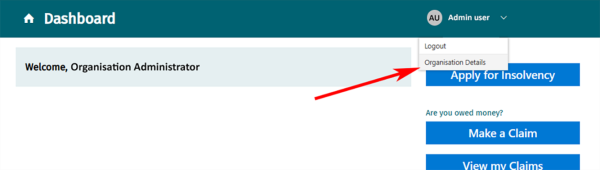
- Select your name at the top of your dashboard.
- From the drop-down menu select Organisation Details.
- Go to Organisation Users and select Add User.
- Enter the new user’s:
- Name — if possible, enter their first and last name as shown on a form of ID such as their passport or driver licence.
- Contact details — enter their contact address, email address, and telephone number.
- Save your change.
The new user must activate their account
We will send an activation email to the new user. They must follow the instructions in that email to activate their account. Do not manually update the user’s account status.
RealMe login required
The new user will need to have a RealMe® login (username and password). They do not need a RealMe verified identity.
If they have used a RealMe login before (for example, to use online services with the Companies Office or MyIR), they can use that RealMe login here.
Otherwise, they can create a RealMe login on our website.
What is RealMe®?(external link) — RealMe website
Removing users
Account administrators can remove users.
- Log in
- Select your name at the top of your dashboard.
- From the drop-down menu select Organisation Details.
- Go to Organisation Users and find the user to remove.
- Select the Remove button beside their name.
- Save your change.
If the person you are removing is an administrator, check that you still have at least 2 administrators assigned to your account.
Adding administrators
Account administrators can add grant administrator permissions to other users. We recommend that you always have at least 2 administrators.
- Log in
- Select your name at the top of your dashboard.
- From the drop-down menu select Organisation Details.
- Go to Organisation Users and select the user to update.
- Select the checkbox beside Organisation Creditor Administrator.
- Save your change.